
Logo Design
Creative Interior Design Logos: How to Make Your Brand Stand Out?
Topic started 2 years
Last Post 2 years ago
October 25

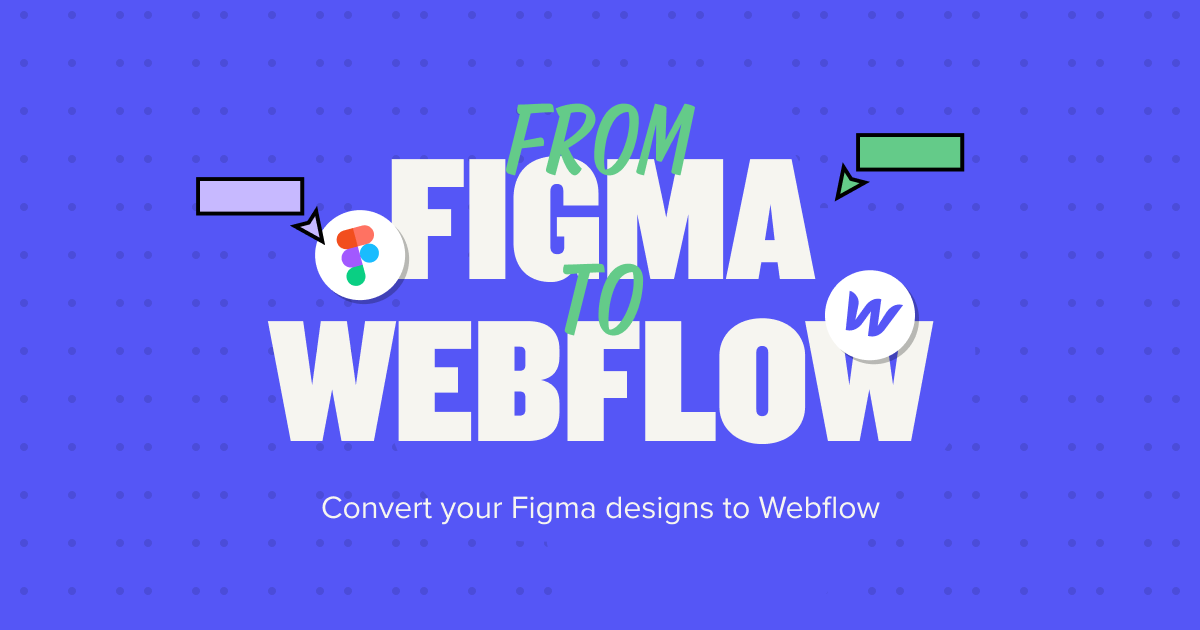
In the realm of digital design and development, Figma and Webflow stand out as two powerful tools that have significantly transformed the way designers and developers collaborate and create websites. Converting Figma designs to Webflow is a critical process in bringing designs to life on the web, ensuring seamless transitions from concept to implementation. Let’s explore steps to convert Figma to Webflow through this article.
Figma is a versatile design tool that allows designers to create, collaborate, and prototype designs in a cloud-based environment. Its intuitive interface and robust features make it a preferred choice for many designers, enabling seamless collaboration and version control.
On the other hand, Webflow is a comprehensive web design and development platform that enables users to design, build, and launch responsive websites visually. With its powerful design tools and flexible layout options, Webflow empowers designers to create custom websites without the need for coding expertise.
The synergy between Figma and Webflow is evident in their compatibility and integration, allowing for a smooth transition from design to development.

Figma to Webflow is the procedure of transforming static designs crafted in Figma, a widely-used interface design tool, into operational websites utilizing Webflow, a visual web development platform. This conversion entails translating Figma’s design components and arrangements into HTML, CSS, and JavaScript code, enabling the construction and launch of live websites through Webflow.
This process is aided by a plugin that permits designers to directly migrate their Figma designs to Webflow, where they can refine and publish them further. The plugin converts Figma’s auto layout frames into tidy code, preserves the design system, and ensures a smooth and efficient transition from design to development. This integration optimizes the workflow for web designers and developers, expediting the journey from design concept to a fully operational website.
Converting Figma designs to Webflow offers various compelling advantages:
Utilizing the integration between Figma and Webflow, especially with plugins, automates the design transfer process, significantly reducing the time and effort required to transform static designs into functional websites.
Webflow’s platform fosters an environment conducive to collaboration, enabling designers and developers to work together more effectively, particularly for teams seeking to streamline their workflow from design to development.
Throughout the conversion process, the original design’s integrity remains intact. This ensures that the visual appeal and user experience conceived in Figma are accurately translated to the final Webflow site.

Webflow’s visual interface for website building allows for greater flexibility in customizing and refining designs post-conversion, eliminating the need for extensive coding.
Through Figma to Webflow conversion, transitioning from prototyping to a live, responsive website is swift, facilitating faster project completion and enabling real-time design iteration.
One notable advantage is the absence of coding requirements to bring designs to fruition. Webflow’s visual development interface makes it accessible to designers lacking coding expertise.
These benefits underscore the wisdom of transitioning from Figma to Webflow for designers and teams seeking to optimize their web design and development process. It represents a streamlined, collaborative, and efficient approach to transforming static designs into interactive, live websites.
Converting your Figma to Webflow involves a series of steps that ensure a smooth transition from static design to a fully functional website. Here’s a step-by-step guide:
Start by creating a new project in Webflow. Choose a template or start from scratch, depending on your preferences and project requirements. Give your project a descriptive name and select the appropriate settings for your website, such as page size and layout.
Once your Webflow project is set up, it’s time to import your design assets from Figma. Webflow offers seamless integration with Figma, allowing you to import frames, components, and styles directly into your Webflow project. Simply connect your Figma account to Webflow and select the desired Figma file or frames to import.
With your design assets imported, it’s time to structure your website in Webflow. Use the imported frames and components as a guide to create the layout and structure of your web pages. Drag and drop elements onto the canvas, adjust settings such as spacing and alignment, and create responsive designs that adapt to different screen sizes.

Once the structure of your website is in place, it’s time to add styling. Use Webflow’s intuitive design tools to customize fonts, colors, and other visual elements to match your Figma designs. Take advantage of Webflow’s advanced styling options, such as CSS grid and flexbox, to create complex layouts with ease.
To bring your designs to life, add interactions and animations using Webflow’s built-in features. Create hover effects, transitions, and animations to enhance user engagement and create a dynamic user experience. Webflow’s visual interface makes it easy to create sophisticated interactions without writing a single line of code.
Once your website is complete, it’s essential to test it thoroughly to ensure everything works as expected. Use Webflow’s built-in preview mode to test your website on different devices and screen sizes. Additionally, you can use Webflow’s staging environment to share your website with clients or stakeholders for feedback. Once you’re satisfied with the results, publish your website to make it live on the web for the world to see.
To streamline the conversion process further and enhance your workflow, consider exploring the latest Figma to Webflow plugins. These plugins offer additional functionalities and integrations that can help you save time and improve efficiency. For example, plugins may offer advanced import options, asset management tools, or integration with third-party services. By staying up-to-date with the latest tools and plugins, you can optimize your workflow and take full advantage of the capabilities of both Figma and Webflow.
Converting Figma designs to Webflow is a critical step in the web design and development process, enabling designers to bring their designs to life on the web seamlessly. By following this step-by-step guide and leveraging the synergy between Figma and Webflow, designers can create custom websites with ease and efficiency. With proper preparation, thoughtful organization, and attention to detail, designers can ensure a smooth transition from design to development, resulting in visually stunning and fully functional websites.
If you are looking for a web development agency that can help you with web design, branding, marketing design, or app design, you can get in touch with ONextStudio, a web development agency that helps you nurture relationships and drive engagement effortlessly. Seamlessly integrated with Figma and Webflow, our solution empowers you to deliver personalized experiences at scale. From web design to marketing automation, we are your partner in harnessing the power of technology to fuel your success.
Topic started 2 years
Last Post 2 years ago